Texture pack review
Nautilus 3D
Nautilus 3D latest build for Minecraft 26.1
Nautilus 3D adds depth and detail to vanilla blocks with custom 3D models, randomized textures, and optimized performance tweaks that keep the classic Minecraft look.
Overview
In-depth
Nautilus 3D is a vanilla-plus texture pack that enhances Minecraft blocks with subtle depth, custom 3D models, and randomized textures while keeping the familiar look and feel. The pack focuses on incremental visual improvements rather than a full style overhaul, so it fits players who prefer the original art direction with added detail. Textures generally use the vanilla color palette and proportions, but small model changes give fences, lanterns, and select building blocks a more tactile presence.
The author, FabianMPunkt, has prioritized performance and compatibility, which is reflected in model choices and texture sizes that aim to avoid significant FPS costs. Nautilus 3D is documented as compatible with a broad range of Java releases, and many players report it runs well in standard Minecraft without heavy mod support. For browsing other texture packs, see our main directory at texturespack.com and compare alternatives.
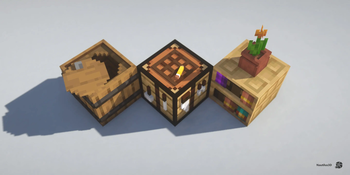
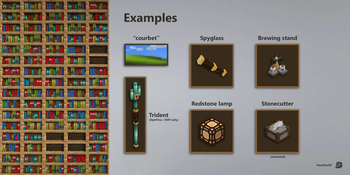
Where this pack shines is in its restrained use of 3D geometry. Rather than overhaul every block, Nautilus 3D applies custom models to specific targets where the added depth makes sense, such as decorative stone variants and crafted furniture. Randomized textures are used sparingly to prevent repetitiveness in large builds while keeping a cohesive aesthetic across biomes.
Installation is straightforward for vanilla players, and there are no mandatory mod loaders, though some players pair Nautilus 3D with performance mods or Optifine for additional control over graphical options. The pack is released under the GNU Affero General Public License v3.0 only, and source context notes the intent to maintain a classic Minecraft look with improved tactile detail. For more texture packs in this style, browse the vanilla-plus category on texturespack.com.
Who should try it
Pick Nautilus 3D if you want the vanilla aesthetic with modest enhancements, or if you build detailed medieval or coastal scenes that benefit from extra model detail. It is a practical choice for players who value consistent visuals and lower overhead, rather than dramatic reskins.
Gallery
Screenshots
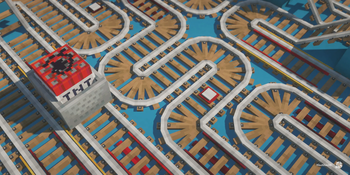
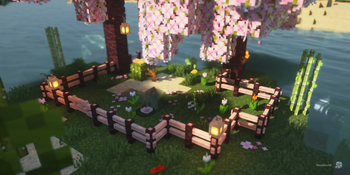
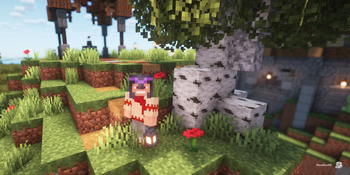
Nautilus 3D in game, captured across biomes and lighting conditions.
What you get
Why Nautilus 3D?
Subtle depth added
Custom 3D models add tactile detail to specific blocks without altering the vanilla silhouette or color palette.
Randomized textures
Sparse use of randomized textures reduces repeating patterns on large surfaces, making builds look more natural.
Low performance impact
Optimized model choices and conservative texture use aim to preserve framerate on a wide range of hardware.
Vanilla friendly
Design keeps the classic Minecraft look, making it suitable for players who prefer minimal visual changes.
Selective modeling
Only targeted blocks receive 3D updates, which preserves consistency while highlighting important details.
Broad version coverage
Listed compatibility across many Java releases reduces friction for players on nearby Minecraft versions.
Downloads
Get Nautilus 3D
The 10 most recent Nautilus 3D builds, direct mirror links, no ad redirects.
Install
How to install Nautilus 3D
Vanilla route
- 1Download the Nautilus 3D pack file from a trusted source on texturespack.com
- 2Open Minecraft, go to Options then Resource Packs and click Open Pack Folder
- 3Move the downloaded Nautilus 3D zip into the resourcepacks folder without unzipping it
- 4Back in Minecraft, activate Nautilus 3D from the Available Resource Packs list and confirm
Modded route (Minecraft Vanilla)
- 1Install Fabric or Forge depending on your mod setup, Optifine is optional for extra settings
- 2Place the Nautilus 3D zip into the resourcepacks folder used by your modded profile
- 3If using Optifine, enable Custom Items or connected textures in video settings as desired
- 4Launch Minecraft with your modded profile and enable Nautilus 3D from Resource Packs
◎ Compatibility
✓ Tested and confirmed working on Minecraft 26.1
We ran Nautilus 3D on Minecraft 26.1 even though the pack was not officially built for this version. Texture packs typically stay compatible across nearby Minecraft releases, and this one runs as expected.
Troubleshooting
Common problems
Missing 3D models showing flat
Ensure you did not unzip the pack and that the resourcepack zip is in the correct folder, then reload resource packs in-game.
Visible seams or texture mismatch
Try disabling connected texture options or reload the resource pack; mismatches can result from conflicting packs or mods.
Lower than expected framerate
Reduce render distance and toggle off fancy graphics, or use performance mods like Sodium while keeping Nautilus 3D enabled.
Pack not appearing in list
Verify the zip contains a pack.mcmeta file at its root and that Minecraft version supports resource packs; move it back into the resourcepacks folder.
FAQ
Frequently asked questions
Which Minecraft versions does Nautilus 3D support?+
The pack lists compatibility with a wide range of Java releases. Texture packs generally remain compatible with nearby Minecraft versions even when they were not officially built for that release.
Will Nautilus 3D affect game performance?+
It is designed to be lightweight with selective 3D models, but performance depends on hardware and settings. Using lower render distance or performance mods can help maintain smooth framerate.
Can I use Nautilus 3D on Bedrock Edition?+
This pack targets Minecraft Java, and Bedrock uses a different resource format, so it will not work natively on Bedrock without conversion tools or remakes.
Do I need Optifine to run Nautilus 3D?+
Optifine is not required, but it can provide additional texture and performance options. Optifine is optional for extra control over animations and connected textures.
Is it safe to use on multiplayer servers?+
Resource packs are client side in most cases, so they pose minimal server risk. Some servers may require a specific pack, and mismatches can cause cosmetic differences only.
My textures look wrong, how can I fix it?+
Try re-enabling the pack, check for conflicting resource packs or mods, and confirm the pack zip contains the correct files. Reloading or restarting the game often resolves visual glitches.
Ready to install?