Texture pack review
Mandala's GUI - Dark mode
Mandala's GUI - Dark mode latest build for Minecraft 1.20.1
Mandala's GUI - Dark mode provides a sleek, modern UI overhaul that replaces the bright vanilla menus with a comfortable dark palette without altering your blocks or items.
Overview
In-depth
Mandala's GUI - Dark mode is a focused interface pack that replaces Minecraft menus, HUD elements, and inventory screens with a darker, low-contrast palette designed for longer play sessions. It leaves blocks and items unchanged, so the look of the world remains the same while your menus become easier on the eyes.
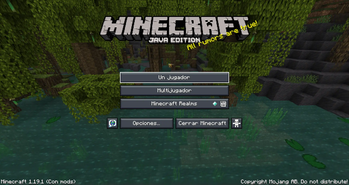
The pack keeps a vanilla-plus style, meaning most typography, iconography, and layout feel familiar, but with softer backgrounds and refined borders. Buttons and tooltips get subtle shading and reduced glare, which helps text stand out without harsh white panels. This is a practical choice for players who prefer subdued colors or who play in low-light environments.
Installation is straightforward, and since the pack targets Minecraft Vanilla loaders it integrates cleanly with the game without needing additional overhaul mods. If you run multiple packs for interface tweaks, Mandala's GUI - Dark mode generally works next to other GUI-focused resources, though some conflicts can occur with packs that replace the same files.
Performance impact is negligible because this pack changes UI textures rather than adding high resolution world assets. For players using shader packs or high resolution resource packs for visuals, pairing this dark GUI keeps menus readable against bright or highly detailed backgrounds. You can browse other texture packs on TexturesPack to compare styles and find complementary resources.
Who this is for
Players who want a calmer UI without altering gameplay visuals, streamers who need a clear and non-distracting overlay, and anyone who prefers darker interfaces will find this pack useful. For more picks within the same category, check the vanilla-plus listings to see similar interface and subtle enhancement packs.
Gallery
Screenshots
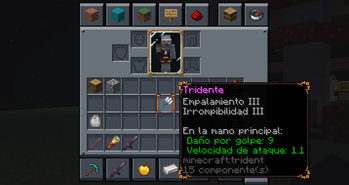
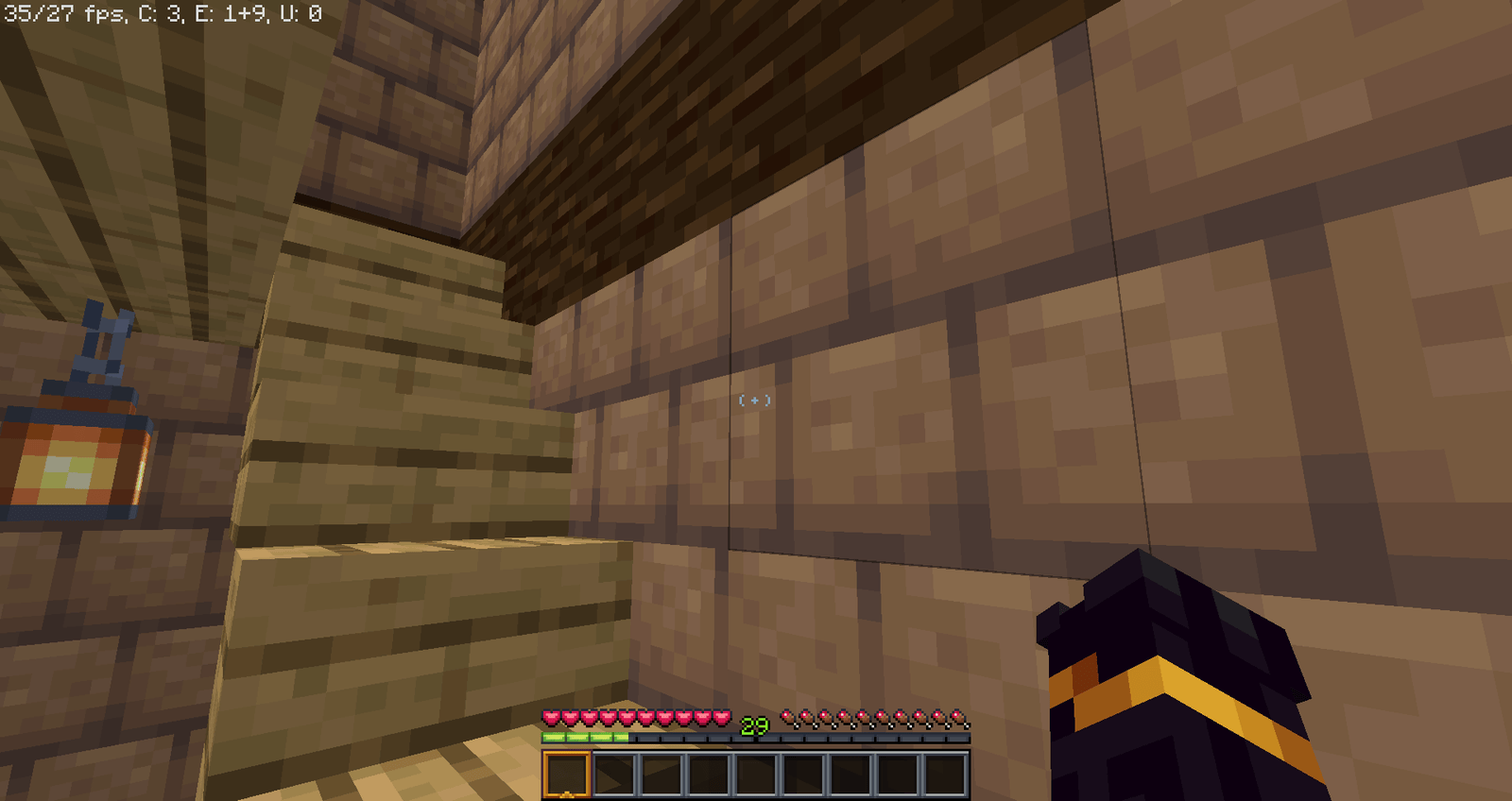
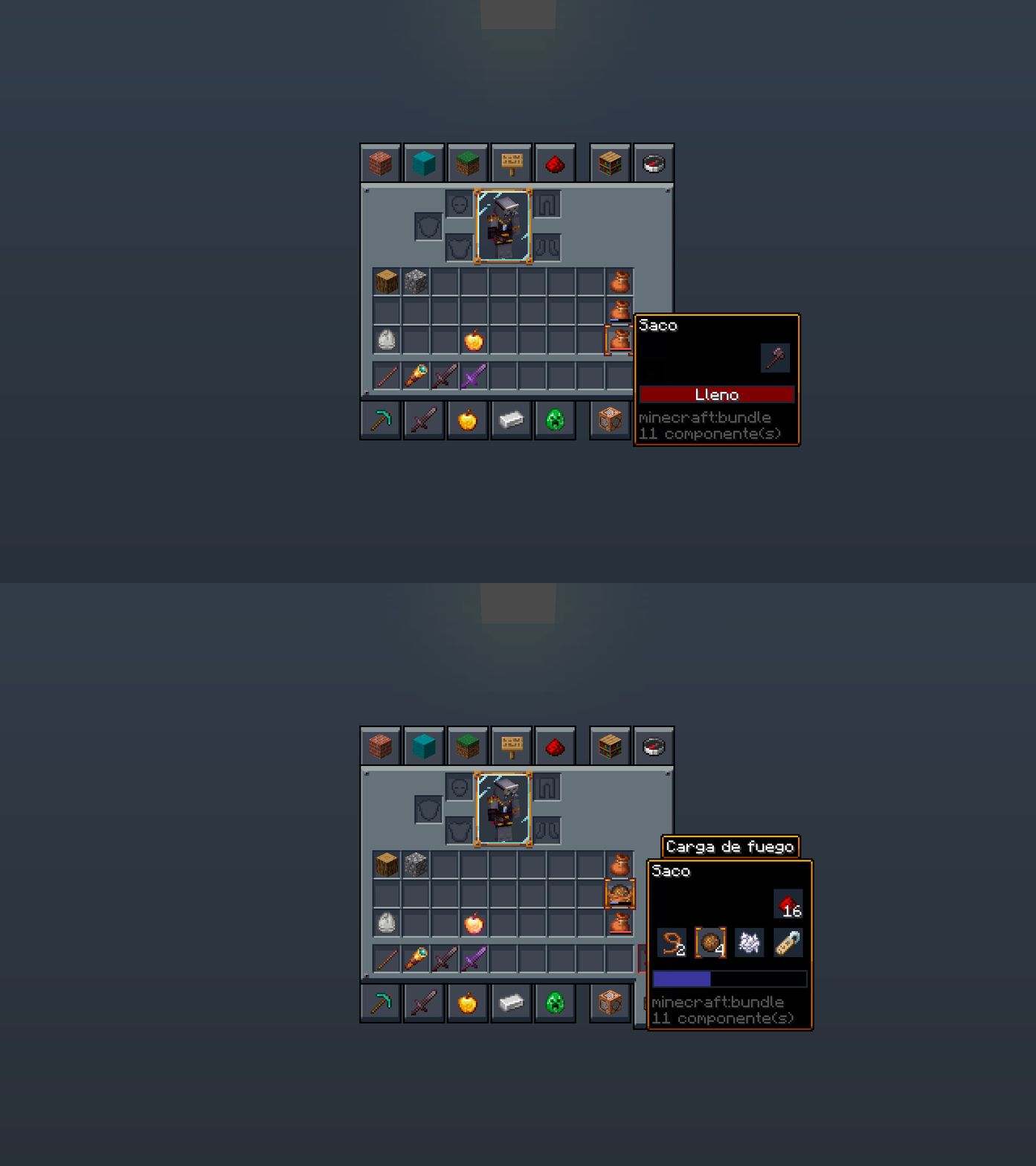
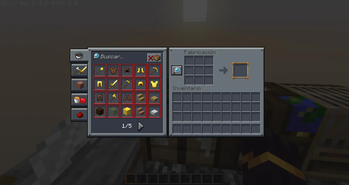
Mandala's GUI - Dark mode in game, captured across biomes and lighting conditions.
What you get
Why Mandala's GUI - Dark mode?
Reduced Eye Strain
Dark backgrounds and muted contrasts make long sessions more comfortable, especially in low-light setups or late night play.
Vanilla Familiarity
Layouts and icons remain close to stock, so you do not need to relearn menus or navigation after installing the pack.
Minimal Performance Impact
Only UI textures are changed, so you should not see noticeable drops in frame rates or loading times.
Cleaner Tooltips
Tooltips and item descriptions use clearer contrast, which improves readability without bright backgrounds.
Compatible with Other Packs
Designed to sit alongside visual packs, it usually pairs well with world or shader packs that change blocks and lighting.
Streamer Friendly
A neutral, dark interface keeps attention on gameplay and overlays, making streams easier to follow visually.
Downloads
Get Mandala's GUI - Dark mode
The 8 most recent Mandala's GUI - Dark mode builds, direct mirror links, no ad redirects.
Install
How to install Mandala's GUI - Dark mode
Vanilla route
- 1Download the Mandala's GUI - Dark mode zip from the creator or listing page.
- 2Open Minecraft, go to Options, then Resource Packs, and click Open Resource Pack Folder.
- 3Move the downloaded zip into the resourcepacks folder without extracting it.
- 4Return to Minecraft, select the pack from Available Resource Packs, and move it to Selected.
- 5Click Done to apply the pack and restart Minecraft if the UI does not update immediately.
Modded route (Minecraft Vanilla)
- 1Install Fabric or Forge for your Minecraft version, Optifine is optional for extra settings.
- 2Place the Mandala's GUI - Dark mode zip into the resourcepacks folder like a normal pack.
- 3Launch Minecraft with Fabric or Forge and confirm the pack appears under Resource Packs.
- 4If using other GUI mods, check for conflicts and adjust load order or disable overlapping packs.
- 5Restart the game after changing mods or resource pack selections to ensure textures load correctly.
◎ Compatibility
✓ Tested and confirmed working on Minecraft 1.20.1
We ran Mandala's GUI - Dark mode on Minecraft 1.20.1 even though the pack was not officially built for this version. Texture packs typically stay compatible across nearby Minecraft releases, and this one runs as expected.
Troubleshooting
Common problems
Buttons look misaligned
Replace or remove other GUI resource packs that modify the same menu files, then reapply only Mandala's GUI - Dark mode and restart Minecraft.
Missing custom textures
Ensure the zip was placed in the resourcepacks folder and not extracted into a subfolder; re-download the pack if files seem incomplete.
Inconsistent colors with shaders
Adjust shader brightness or UI contrast options, or move the GUI pack higher in the resource pack list to prioritize its textures.
Pack not showing in game
Confirm you launched the correct Minecraft version and loader, then check the resourcepacks folder path and restart the launcher.
FAQ
Frequently asked questions
Which Minecraft versions does Mandala's GUI - Dark mode support?+
The author lists many supported versions across multiple releases. Texture packs generally remain compatible with nearby Minecraft versions even when they were not officially built for that release, so try the pack on close versions if needed.
Will this pack affect performance?+
This pack only changes UI textures, so it should not cause noticeable performance drops. Running many high resolution packs or shaders may affect performance independently.
Can I use this on Bedrock Edition?+
Mandala's GUI - Dark mode targets Java resource packs, and Bedrock uses a different format. You would need a Bedrock-converted version for it to work on that edition.
Do I need Optifine to use this pack?+
Optifine is not required to use this GUI pack. Optifine can be used optionally for additional graphical settings, but it does not change installation of resource packs.
Is there any risk using this pack on servers?+
Resource packs that only change client-side textures carry minimal server risk; servers can require or suggest packs but generally do not run texture packs server side.
What if items or tooltips look wrong after installing?+
Conflicts with other packs are the most common cause, so disable other resource packs that modify UI elements and re-enable them one at a time to find the conflict.
Ready to install?