Texture pack review
Icon Xaero's
Icon Xaero's latest build for Minecraft 1.6.1
Icon Xaero's provides a massive library of creature icons for Xaero's World Map and Minimap, supporting dozens of popular mob mods to keep your radar clear and visually consistent.
- Style
- Mod Support
- Platform
- Java
- Author
- godkyo98
- First release
- Jul 12, 2023
- Latest version verified
- 1.6.1
Overview
In-depth
Icon Xaero's is a focused icon pack that supplies a large library of creature and object icons designed for Xaero's World Map and Minimap. It aims to replace or supplement the default radar symbols, so modded mobs and special entities get clear, consistent markers in the map interface.
The pack is authored by godkyo98 and targets players who run mods that add new creatures or unique entities. Rather than changing in-game textures, Icon Xaero's concentrates on the small, readable icons that appear on the map, which helps keep navigation tidy when you use modded mobs. The collection covers many widely used creature mods, so map markers match the visual identity of those mods instead of showing generic placeholders.
Installation is straightforward and does not alter core game assets, it simply provides icon files that Xaero's expects. That means compatibility depends primarily on the mod and Xaero's mod version you use. You can install a single icon pack or combine it with other map icon sets, but take care to avoid duplicate filenames that might overwrite icons you want to keep.
Who will like this pack
Players who run Xaero's World Map or Minimap and use multiple creature mods will appreciate how Icon Xaero's brings consistent, mod-aware map markers. The pack is aimed at practicality, making it easier to identify modded creatures at a glance. For a browse of other packs that affect icons and maps, see our texture pack library at texturespack.com. For more packs in the same thematic category, visit the mods category on texturespack.com/browse/texture-packs?category=mods.
Gallery
Screenshots
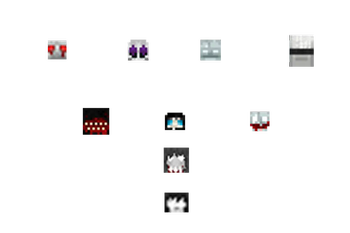
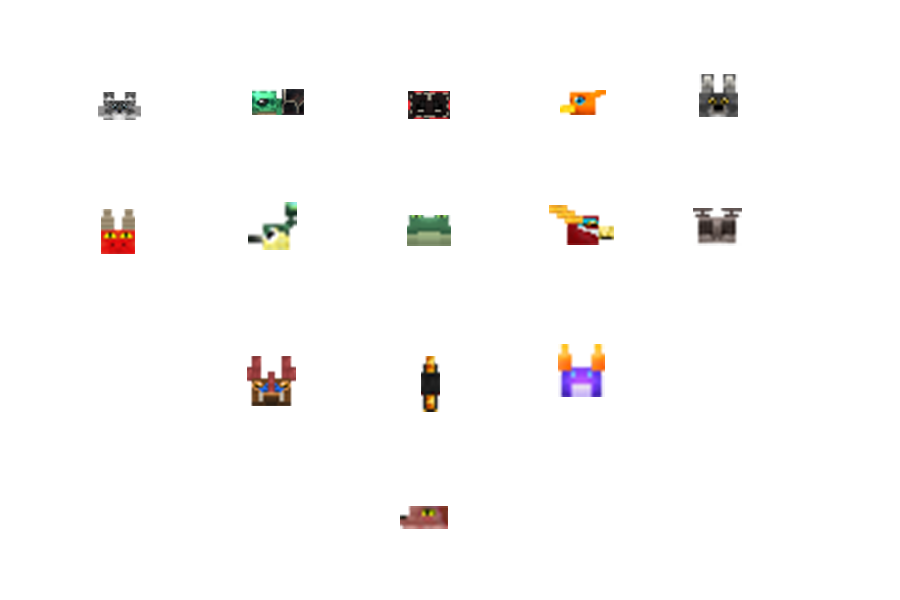
Icon Xaero's in game, captured across biomes and lighting conditions.
What you get
Why Icon Xaero's?
Clear Map Icons
Icons replace generic markers with distinct symbols, making it easier to identify modded mobs on the radar at a glance.
Wide Mod Support
The pack includes icons for many popular creature mods, reducing placeholders and keeping map readouts consistent across mods.
Low Impact
Because it only supplies icon files for Xaero's mods, it does not change large textures or performance heavy assets.
Easy Integration
Files drop into Xaero's icon folder, so installation is usually a quick file copy without additional configuration.
Consistent Style
Icons share a cohesive design language, which helps maintain visual clarity when multiple mods add new entities.
Mod Friendly
The pack was created with modded setups in mind, helping players who run diverse mod lists keep their maps readable.
Downloads
Get Icon Xaero's
The 10 most recent Icon Xaero's builds, direct mirror links, no ad redirects.
Install
How to install Icon Xaero's
Vanilla route
- 1Download the Icon Xaero's pack file from the mod page or resource host.
- 2Open your Minecraft resourcepacks or config folder where Xaero's stores icon files.
- 3Copy the icon pack folder into the Xaero's icons directory, preserving filenames.
- 4Restart Minecraft to let Xaero's detect the new icon files and refresh the map state.
- 5Verify icons appear in Xaero's options and adjust icon size or opacity as needed.
Modded route (Minecraft Vanilla)
- 1Download the Icon Xaero's pack and place it alongside your mod files.
- 2If using Fabric or Forge, ensure Xaero's World Map or Minimap is installed first.
- 3Drop the icon folder into Xaero's icons directory, keeping the pack structure intact.
- 4Restart Minecraft with Fabric or Forge and optionally use Optifine for additional performance tweaks.
- 5Check Xaero's mod settings to confirm the new icons are active and not overwritten.
◎ Compatibility
✓ Tested and confirmed working on Minecraft 1.6.1
We ran Icon Xaero's on Minecraft 1.6.1 even though the pack was not officially built for this version. Texture packs typically stay compatible across nearby Minecraft releases, and this one runs as expected.
Troubleshooting
Common problems
Icons do not show up
Ensure the icon folder is placed in Xaero's expected icons directory and restart Minecraft so the mod reloads its resources.
Wrong or missing icon for a mod mob
Check for filename mismatches between the mod entity ID and the icon name, and replace or rename the icon to match the entity identifier.
Icons overwritten by another pack
Move the desired pack later in your load order or rename files to avoid collisions, and keep backups of original icons before replacing them.
Visual glitches after update
Clear Xaero's cached icon data by restarting the client and, if needed, re-copy the icon files from a fresh download to ensure no corruption.
FAQ
Frequently asked questions
Which Minecraft versions does Icon Xaero's support?+
The pack lists support for many older and recent versions, but compatibility can vary with Xaero's mod updates. Texture packs generally remain compatible with nearby Minecraft versions even when they were not officially built for that release.
Will this pack affect game performance?+
Icon packs have minimal performance impact because they are small image files used only by the map. Large mod lists or many UI mods may have a larger effect than the icons themselves.
Can I use Icon Xaero's on Bedrock Edition?+
Icon Xaero's is designed for the Java mod Xaero's World Map and Minimap, so it is not compatible with Bedrock. Bedrock uses a different add-on and resource structure.
Do I need Optifine to use this pack?+
Optifine is not required to use Icon Xaero's. It can be used with Fabric or Forge setups, and Optifine is optional for additional graphical options.
Will using this pack cause server issues or bans?+
Icons are client side and do not alter server data, so they should not cause server bans. Always follow server rules about mods and client-side resources.
What if an icon seems wrong after a mod update?+
Re-download the latest pack release, check for updated filenames, and reapply the icon files. Texture packs generally remain compatible with nearby Minecraft versions even when they were not officially built for that release.
Ready to install?