Texture pack review
Fancy Beds
Fancy Beds latest build for Minecraft 1.14
The Fancy Beds texture pack replaces the standard blocky bed models with much more detailed and decorative designs that fit perfectly into cozy builds.
Overview
In-depth
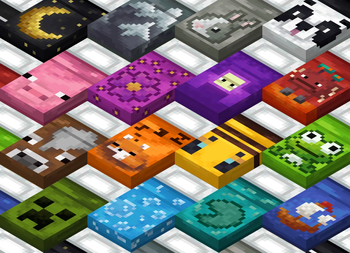
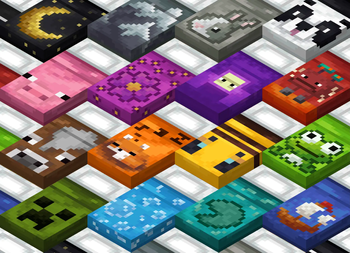
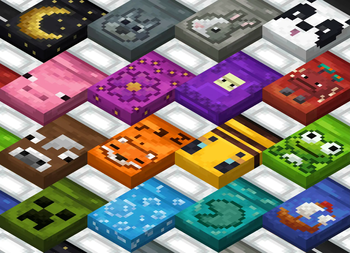
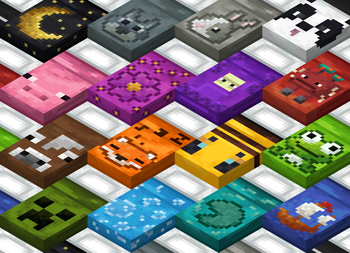
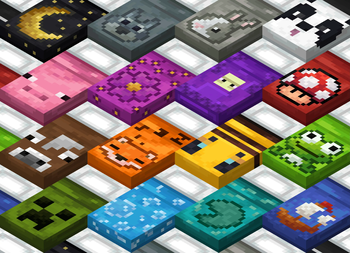
Fancy Beds updates the look of Minecraft beds with more detailed, decorative models that suit cozy interiors and refined builds. The pack keeps the blocky proportions players expect, while adding stitched textures, patterned covers, and a clearer separation between mattress, headboard, and frame. Colors are faithful to the vanilla palette, so red, blue, and other dye variants remain instantly recognizable, but each color gets subtle fabric shading and small highlights that make beds read better at a distance and close up.
The author Agente_511 focused on a vanilla-plus approach, meaning the changes are specific and limited to bedding and associated assets rather than an entire overhaul. That makes Fancy Beds an easy match for most base game worlds and other resource packs that do not alter bed models. The pack ships with multiple style options for some bed types, letting you choose between a simple upgraded look or a more ornate, carved frame for builds that need a decorative focal point.
Installation is straightforward and plays nicely with vanilla clients. If you frequently browse textures on this site, you can jump back to the main texture pack list to compare alternatives at texturespack.com/browse/texture-packs. For users who prefer a curated category view, Fancy Beds is listed under the vanilla-plus category, which groups similarly scoped upgrades together at texturespack.com/browse/texture-packs?category=vanilla-plus.
How it fits into builds
Because changes are focused, Fancy Beds works well in medieval, cottagecore, and modern interiors without forcing a stylistic clash. Builders who like to mix and match packs will appreciate that the pack avoids heavy retexturing of nearby blocks, reducing the visual friction that can occur when mixing disparate styles. The pack is also a good choice for screenshots and roleplay servers where bedroom detail matters but performance is still a concern, since it does not add high resolution or complex shaders.
Gallery
Screenshots
Fancy Beds in game, captured across biomes and lighting conditions.
What you get
Why Fancy Beds?
Cleaner bed detail
Stitching, seams, and subtle shading make individual bed pieces read more clearly at both close and medium distances.
Vanilla friendly
Design choices maintain vanilla colors and proportions, so the pack blends easily with unmodified worlds and other mild packs.
Multiple style options
Some beds include alternate frame or cover styles, allowing you to pick a simple or ornate look to match your build.
Low performance impact
Textures remain modest in scope and do not introduce large files or additional shader needs, keeping FPS stable on most machines.
Great for interiors
Focused changes make bedrooms and roleplay areas more visually interesting without altering surrounding block aesthetics.
Easy to combine
Because the pack only targets beds, it is straightforward to layer with larger texture packs or custom builds.
Downloads
Get Fancy Beds
The 10 most recent Fancy Beds builds, direct mirror links, no ad redirects.
Install
How to install Fancy Beds
Vanilla route
- 1Download the Fancy Beds zip from the pack page on texturespack.com
- 2Open Minecraft, go to Options, then Resource Packs, and click Open Pack Folder
- 3Move the downloaded zip into the resourcepacks folder without extracting it
- 4Back in Minecraft, enable Fancy Beds in the Resource Packs list and confirm
- 5Restart Minecraft if textures do not appear correctly after enabling
Modded route (Minecraft Vanilla)
- 1Install Fabric or Forge for your Minecraft version, Optifine is optional for extra texture features
- 2Run the modded launcher once to create the mods and resourcepack folders
- 3Place the Fancy Beds zip into the resourcepacks folder without extracting it
- 4Enable or move the pack to the Selected list in Minecraft resource packs
- 5Restart the modded client to ensure Fabric or Forge loads the pack correctly
◎ Compatibility
✓ Tested and confirmed working on Minecraft 1.14
We ran Fancy Beds on Minecraft 1.14 even though the pack was not officially built for this version. Texture packs typically stay compatible across nearby Minecraft releases, and this one runs as expected.
Troubleshooting
Common problems
Bed looks unchanged
Confirm the pack is enabled in Minecraft resource packs and placed in the resourcepacks folder, then restart the game if needed.
Color variants missing
Make sure you have the correct version of Fancy Beds for your Minecraft release and that no other pack higher in the list overrides bed textures.
Conflicts with other packs
Move Fancy Beds higher in the resource pack order or remove overlapping packs that also modify bed assets to resolve visual conflicts.
Textures look glitched
Clear the game resource cache by restarting Minecraft, and disable any shader packs to check for compatibility issues.
FAQ
Frequently asked questions
Which Minecraft versions does Fancy Beds support?+
The pack lists support across many 1.14 through 1.21 builds. Texture packs generally remain compatible with nearby Minecraft versions even when they were not officially built for that release.
Will Fancy Beds hurt my FPS?+
No, the pack focuses on detailed but modest textures that do not add heavy resolutions, so most players should see little to no performance drop.
Can I use this on Bedrock Edition?+
Fancy Beds is designed for Java Edition resource packs and is not packaged for Bedrock. Bedrock uses a different format and would need conversion to work.
Do I need Optifine to use Fancy Beds?+
Optifine is not required because Fancy Beds uses standard resource pack features, though Optifine can enable additional performance or texture options if you choose to use it.
Can I use Fancy Beds on a multiplayer server?+
Client side resource packs like Fancy Beds only change visuals on your end, so they are safe to use on most servers and do not affect gameplay or server files.
What if a bed still looks wrong after installing?+
Try disabling other resource packs, restart Minecraft, and verify you installed the correct zip into the resourcepacks folder to resolve most display issues.
Ready to install?