Texture pack review
Default HD 128x
Default HD 128x 128x, latest build for Minecraft 1.8
Default HD 128x upgrades the original Minecraft appearance with significantly higher resolution and refined lighting while keeping the faithful game style intact.
- Style
- Simplistic
- Platform
- Java
- Author
- thebaum64
- First release
- May 4, 2023
- Latest version verified
- 1.8
Overview
In-depth
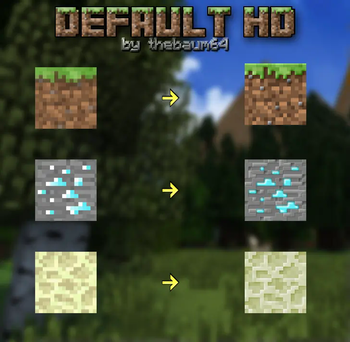
Default HD 128x updates the familiar Minecraft visuals by increasing resolution to 128x while preserving the original look and proportions. This pack focuses on clarity, refined lighting, and crisper textures rather than reinventing the game style. That makes it a good fit for players who want a sharper version of vanilla without changing colour palettes or block silhouettes.
The author thebaum64 kept art choices conservative, so items, mobs, and environments remain instantly recognizable. Textures show more surface detail, subtle shading, and smoother edges that help structures and landscapes look less pixelated at close range. Players who enjoy building or recording gameplay will appreciate the improved readability of blocks and tools.
Performance will depend on your hardware and settings, but because this pack sticks to a faithful aesthetic and avoids heavy shaders, it typically uses less overhead than complex overhaul packs. For quick browsing or comparing similar options, see the full selection on our texture pack directory. If you prefer packs with a clean, faithful approach, you can explore other entries in the clean category to find alternatives with similar goals.
What to expect
Expect a straightforward upgrade, not a visual overhaul. Default HD 128x refines textures, keeps iconography and block logic intact, and aims for consistency across biomes and items. That makes it a reliable choice for servers that want a higher resolution look without confusing players with unfamiliar visuals. Installation is the same as other resource packs, and because it targets vanilla loaders, it integrates with standard Minecraft clients.
Gallery
Screenshots
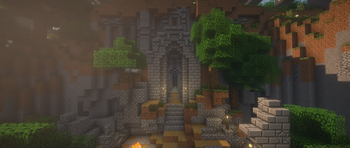
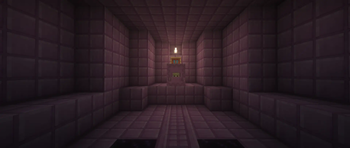
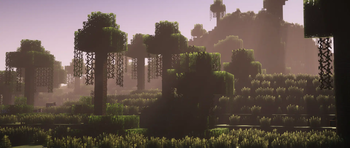
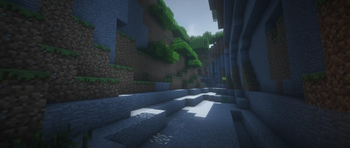
Default HD 128x in game, captured across biomes and lighting conditions.
What you get
Why Default HD 128x?
Sharper vanilla look
Preserves the original Minecraft style while increasing resolution for cleaner edges and clearer details across blocks and items.
Consistent art direction
Maintains uniform shading and color choices so builds and biomes remain cohesive without jarring visual changes.
Good readability
Higher resolution textures make signs, item icons, and block faces easier to read at close and medium distances.
Low artistic deviation
Minimal reinterpretation of vanilla assets means players quickly recognize materials, mobs, and UI elements.
Suitable for builds
Detailed yet faithful textures help showcase architecture without altering block behavior or game mechanics.
Vanilla loader friendly
Designed for standard Minecraft clients, so you can use it without special resource pack loaders or conversions.
Downloads
Get Default HD 128x
The 10 most recent Default HD 128x builds, direct mirror links, no ad redirects.
Install
How to install Default HD 128x
Vanilla route
- 1Download the Default HD 128x pack from the author or a trusted site.
- 2Open Minecraft, go to Options, then Resource Packs to open the folder.
- 3Move the downloaded zip file into the resourcepacks folder.
- 4Return to Minecraft and enable Default HD 128x from the resource pack list.
- 5Restart Minecraft if textures appear missing or to ensure full load.
Modded route (Minecraft Vanilla)
- 1Install Fabric or Forge for your chosen Minecraft version, Optifine optional for extra settings.
- 2Place the Default HD 128x zip into the resourcepacks folder in the Minecraft directory.
- 3If using Optifine, check HD texture settings and connected textures options as needed.
- 4Enable the pack from Options, Resource Packs, and adjust shader or performance mods afterward.
- 5Restart the launcher or game to ensure compatibility with mods and resource loading.
◎ Compatibility
✓ Tested and confirmed working on Minecraft 1.8
We ran Default HD 128x on Minecraft 1.8 even though the pack was not officially built for this version. Texture packs typically stay compatible across nearby Minecraft releases, and this one runs as expected.
Troubleshooting
Common problems
Missing textures appear
Ensure the pack was placed in the correct resourcepacks folder and the zip is not nested inside another folder; restart the game to force a reload.
Lower framerate after enabling
Lower render distance, disable shaders, or enable performance settings in Optifine; higher resolution packs need more GPU memory.
UI elements look off
Confirm you enabled the correct pack and not a different resolution variant; some packs include multiple folders, pick the 128x option if present.
Compatibility with custom shaders
Disable conflicting shader features or update shaders; check that connected textures and normal map settings match the pack for best results.
FAQ
Frequently asked questions
What Minecraft versions does this support?+
Default HD 128x lists many supported versions spanning older and newer releases; texture packs generally remain compatible with nearby Minecraft versions even when they were not officially built for that release.
Will this pack hurt my performance?+
Higher resolution textures at 128x use more VRAM than vanilla, so expect some impact on lower end systems. Texture packs generally remain compatible with nearby Minecraft versions even when they were not officially built for that release.
Can I use this on Bedrock Edition?+
This pack targets Minecraft Java resource pack format and may need conversion for Bedrock, which uses a different packaging and manifest system. Texture packs generally remain compatible with nearby Minecraft versions even when they were not officially built for that release.
Do I need Optifine to run it?+
Optifine is not required to use Default HD 128x, but Optifine can help with performance and extra settings like connected textures and mipmaps.
Is it safe to use on multiplayer servers?+
Resource packs are client side and usually safe to use on servers, although some servers may force a different pack for gameplay; texture packs generally remain compatible with nearby Minecraft versions even when they were not officially built for that release.
What if a texture looks broken after an update?+
Check for an updated pack version from the author or revert to a prior game version; also try clearing the resource pack cache and restarting the client.
Ready to install?