Texture pack review
Default Dark Mode
Default Dark Mode latest build for Minecraft 26.2
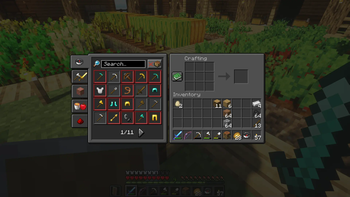
Default Dark Mode is a resource pack that swaps bright white menus for a sleek dark grey theme while keeping the classic Minecraft textures unchanged.
Overview
In-depth
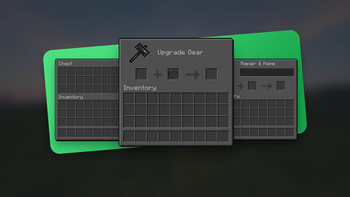
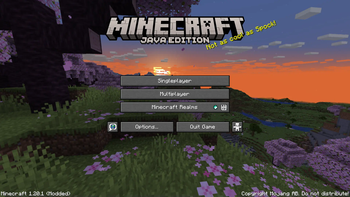
Default Dark Mode turns the title Default Dark Mode into a simple, focused change to Minecraft, replacing bright white menus and interface elements with a subdued dark grey palette while leaving the classic textures intact. The result is a user interface that reduces eye strain and highlights in-game colors more gently, without altering block, mob, or item artwork.
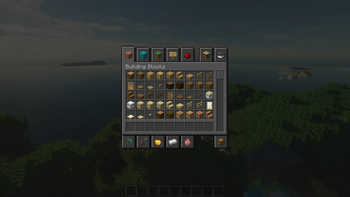
The pack sticks close to vanilla styling, so players who prefer the original look will not feel like they are using a radically different theme. Menus, chat, inventories, and HUD elements receive consistent dark backgrounds and adjusted text contrast, which helps readability in low light sessions and when using larger monitors.
You will find Default Dark Mode useful for both creative building sessions and long survival runs, because it keeps tooltips and menus clear but unobtrusive. The author, nebulr, aimed for minimalism: changes are limited to interface textures and color adjustments, with no added visual effects or retextured models. That approach keeps the pack compatible with many mods and shaders that only touch world rendering.
Installation is straightforward for standard Minecraft setups, and the pack works well alongside common performance or UI mods so long as those mods do not override vanilla interface files. For a broad selection of other texture packs, browse the main texture pack listings on our site at TexturePacks. If you want packs in the same style, see the vanilla-plus category for similar minimalist and vanilla-friendly themes at vanilla-plus packs.
Default Dark Mode is licensed under Creative Commons Attribution Non Commercial Share Alike, which generally allows personal sharing and adaptation provided attribution is kept and uses are noncommercial. Because the pack only touches UI elements, it is simple to combine with other resource packs that modify gameplay visuals, but always keep backups of original files when mixing multiple packs.
Gallery
Screenshots
Default Dark Mode in game, captured across biomes and lighting conditions.
What you get
Why Default Dark Mode?
Reduced Eye Strain
Dark backgrounds and softer contrast help reduce glare during long play sessions, especially in low light environments.
Vanilla Friendly
Keeps classic block, mob, and item textures unchanged, making the pack feel familiar while improving the interface.
Simple and Clean
Minimal changes focus on interface clarity without adding distracting art or effects that clash with vanilla aesthetics.
Easy Compatibility
Because it modifies only UI textures, the pack generally works well alongside many mods and other resource packs.
Readable Menus
Adjusted text contrast on dark backgrounds improves legibility for inventories, chat, and tooltips.
Lightweight Approach
No extra shaders or models are included, so performance impact is negligible on most systems.
Downloads
Get Default Dark Mode
The 10 most recent Default Dark Mode builds, direct mirror links, no ad redirects.
Install
How to install Default Dark Mode
Vanilla route
- 1Download the Default Dark Mode zip and do not extract the pack folder.
- 2Open Minecraft launcher and select Options or Installations to run the correct version.
- 3From the main menu go to Options, Resource Packs, then Open Pack Folder.
- 4Move the downloaded zip into the resourcepacks folder, then enable it in-game.
- 5Restart Minecraft if textures do not appear correctly after enabling the pack.
Modded route (Minecraft Vanilla)
- 1Ensure you run Minecraft with Fabric or Forge, Optifine optional for extra settings.
- 2Place the Default Dark Mode zip in the resourcepacks folder while the game is closed.
- 3Launch Minecraft with your chosen mod loader and go to Options, Resource Packs.
- 4Enable the pack in-game, and reorder with other packs to ensure UI textures take priority.
- 5If using Optifine, check compatibility settings and restart if interface changes do not apply.
◎ Compatibility
✓ Tested and confirmed working on Minecraft 26.2 and 26.1.2
We ran Default Dark Mode on Minecraft 26.2 and 26.1.2 even though the pack was not officially built for these versions. Texture packs typically stay compatible across nearby Minecraft releases, and this one runs as expected.
Troubleshooting
Common problems
Menus still bright
Confirm the pack is enabled and at top of the resource pack list, then restart Minecraft to force texture reload.
Text hard to read
Reduce GUI scale or adjust chat and HUD settings, and try toggling the pack off and on to refresh font textures.
Conflict with another pack
Move Default Dark Mode above the other pack in Resource Packs, or disable the other pack to isolate which files overlap.
Buttons misaligned
This is usually a version mismatch, switch to a nearby supported Minecraft version or use a backup of the original UI files.
FAQ
Frequently asked questions
Which Minecraft versions does Default Dark Mode support?+
The pack lists many supported versions across multiple releases, and it should work with those entries. Texture packs often remain compatible with nearby Minecraft versions even when they were not officially built for that release.
Will this pack affect game performance?+
No heavy assets are included, so performance impact is minimal. If you notice slowdowns, disable other packs or mods to test performance.
Can I use Default Dark Mode on Bedrock Edition?+
This pack is provided for Minecraft Java interface textures, so it will not install directly on Bedrock without conversion tools.
Do I need Optifine to use this pack?+
Optifine is not required for this interface-only pack, though Optifine can be used optionally for other graphical adjustments.
Is it safe to use on multiplayer servers?+
Yes, resource packs that change only client-side interface are safe for multiplayer and do not pose server risks.
What if UI elements look broken after an update?+
Try disabling the pack or rolling back to a nearby compatible version. Texture packs generally remain compatible with nearby Minecraft versions even when they were not officially built for that release.
Ready to install?