Texture pack review
Cobblemon Interface: Modded
Cobblemon Interface: Modded latest build for Minecraft 26.2
This pack bridges the visual gap between Cobblemon and other popular mods, ensuring your menus, buttons, and sounds all follow the same clean aesthetic.
- Style
- Mod Support
- Platform
- Java
- Author
- VinnyStalck
- First release
- Mar 19, 2024
- Latest version verified
- 26.2
Overview
In-depth
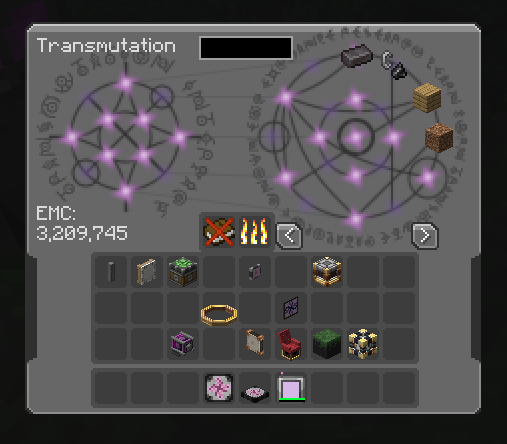
Cobblemon Interface: Modded updates menu elements, buttons, icons, and system sounds so that menus tied to Cobblemon and similar mods share a consistent appearance. The pack focuses on UI elements rather than world or item textures, making it a practical choice for players who use many mods simultaneously and want a single visual language across their screens.
The pack was created by VinnyStalck to bridge the visual gap between Cobblemon and other popular mods, and it keeps controls and information panels clean and readable. It does not change vanilla block textures or mobs, instead concentrating on inventory screens, dialog boxes, hotbar accents, and button states to reduce visual friction during play. You will notice consistent color choices, simplified iconography, and subtle sound adjustments that make repeated menu interactions less distracting.
Cobblemon Interface: Modded works well with a broad range of modpacks, provided those mods expose their UI elements through the usual asset folders. Some mods bundle their own interfaces which may still appear unchanged, so check mod compatibility notes where available. For more texture pack options across categories, browse the main texture pack listings on texturespack.com.
Who this pack is for
This pack suits players who prioritize a coherent menu and HUD presentation when running Cobblemon alongside other mods. It is light in scope, so it plays nicely with performance-sensitive setups and can be layered with larger graphical packs. If you want to keep the Minecraft world visuals untouched but unify your mod-driven interfaces, this pack is worth testing.
Installation steps are straightforward and work with standard resource pack handling. If you need a collection centered on mod-focused textures, see the mods category for more similar packs.
Gallery
Screenshots
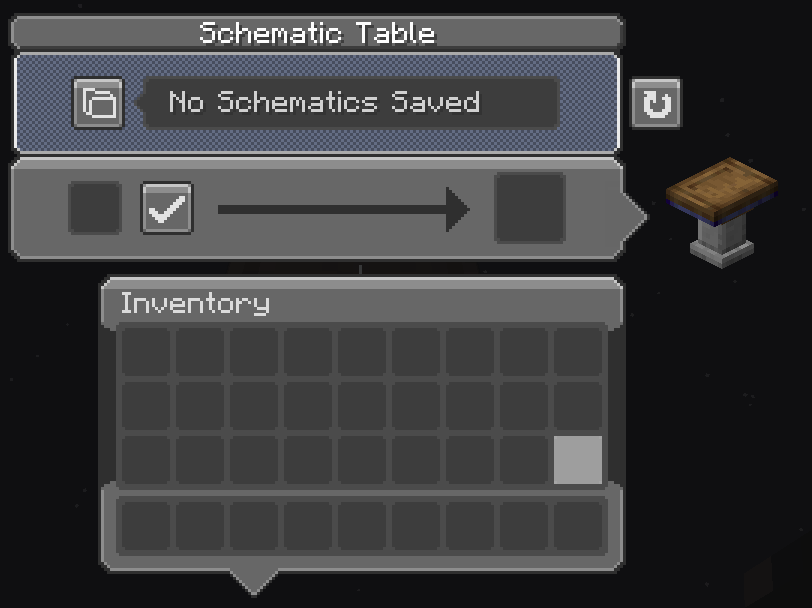
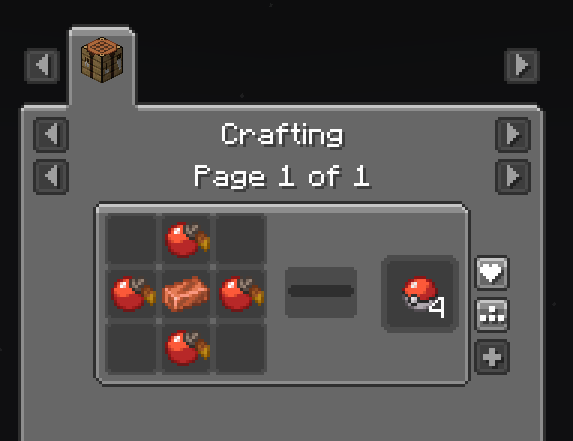
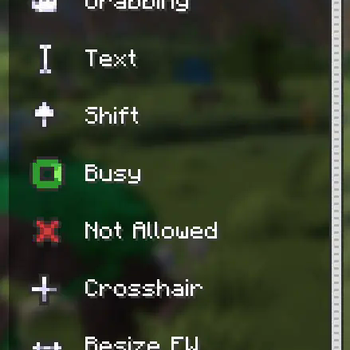
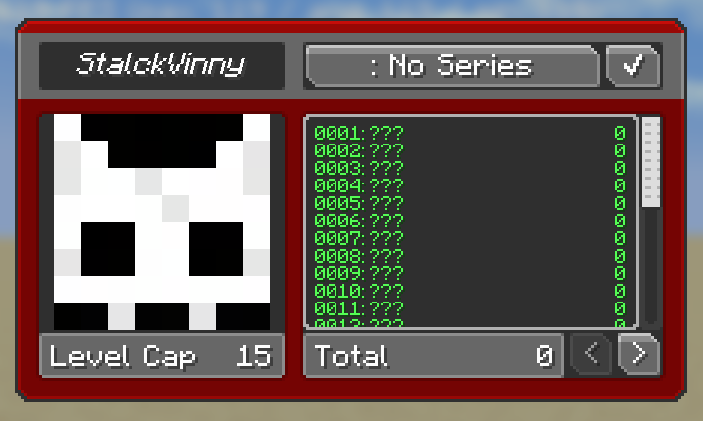
Cobblemon Interface: Modded in game, captured across biomes and lighting conditions.
What you get
Why Cobblemon Interface: Modded?
Consistent Mod Menus
Unifies menu components and button styles across different mods so in-game screens feel coherent and intentional.
Minimal Scope
Targets only interface elements and sounds, leaving world textures untouched to avoid conflicts with other packs.
Low Overhead
Small, focused changes keep performance impact minimal, suitable for players with modest hardware.
Improved Readability
Simplified icons and clearer button states help you scan options and inventory faster during play.
Mod Friendly
Designed to complement popular mods, making it less likely to clash with modded UI layouts and conventions.
Optional Sound Tweaks
Subtle interface sound adjustments reduce fatigue from repeated clicks without altering gameplay audio balance.
Downloads
Get Cobblemon Interface: Modded
The 10 most recent Cobblemon Interface: Modded builds, direct mirror links, no ad redirects.
Install
How to install Cobblemon Interface: Modded
Vanilla route
- 1Download the pack zip and place it into the resourcepacks folder.
- 2Launch Minecraft and open Options, then Resource Packs.
- 3Move Cobblemon Interface: Modded to the Selected list.
- 4Restart Minecraft to ensure all UI assets load correctly.
Modded route (Minecraft Vanilla)
- 1Install Fabric or Forge depending on your mod loader and launch Minecraft once.
- 2Place the pack zip into the resourcepacks folder while mods are installed.
- 3Enable Cobblemon Interface: Modded from Options, Resource Packs in-game.
- 4Use Optifine as optional enhancement for extra texture controls and compatibility.
◎ Compatibility
✓ Tested and confirmed working on Minecraft 26.2 and 26.1.2
We ran Cobblemon Interface: Modded on Minecraft 26.2 and 26.1.2 even though the pack was not officially built for these versions. Texture packs typically stay compatible across nearby Minecraft releases, and this one runs as expected.
Troubleshooting
Common problems
Mod UI still shows original art.
Some mods ship their own embedded UI textures, so they will not be overridden. Check whether the mod supports resource pack overrides or seek a mod-specific patch.
Buttons look misaligned in certain screens.
Screen layout differences across mods can cause alignment issues; try moving the pack lower in your resource pack list or combine it with a mod-specific compatibility pack.
Sound cues do not change.
Ensure the resource pack is active and not shadowed by another pack that replaces UI sounds, then restart the game to reload audio assets.
Texture artifacts after update.
Clear the resource pack cache by restarting Minecraft, and remove conflicting packs to identify which pack causes the artifact.
FAQ
Frequently asked questions
Which Minecraft versions does Cobblemon Interface: Modded support?+
This pack lists support for 1.20 through 1.21.1, and typically texture packs remain compatible with nearby Minecraft versions even when they were not officially built for that release.
Will this pack affect in-game performance?+
Because the pack focuses on UI elements and not large world textures, it has a small performance footprint. Performance can still vary with mods and launcher settings.
Can I use this pack on Bedrock Edition?+
This pack is made for Java edition resource packs and will not install directly on Bedrock. Bedrock uses a different format and requires separate conversions.
Do I need Optifine to use this pack?+
Optifine is not required to use the pack, though it can provide extra texture and performance options. The pack functions without Optifine enabled.
Will running this pack cause server bans or grief detection issues?+
Using client-side texture packs is generally allowed and does not trigger server bans, since they do not modify gameplay logic. Always review server rules to be sure.
One interface element looks broken, how do I fix it?+
Try disabling other resource packs to isolate the problem, then restart Minecraft. If the issue persists, check whether the mod provides its own UI assets that cannot be overridden.
Ready to install?