Texture pack review
Better Old Netherrack
Better Old Netherrack 16x, latest build for Minecraft 1.16
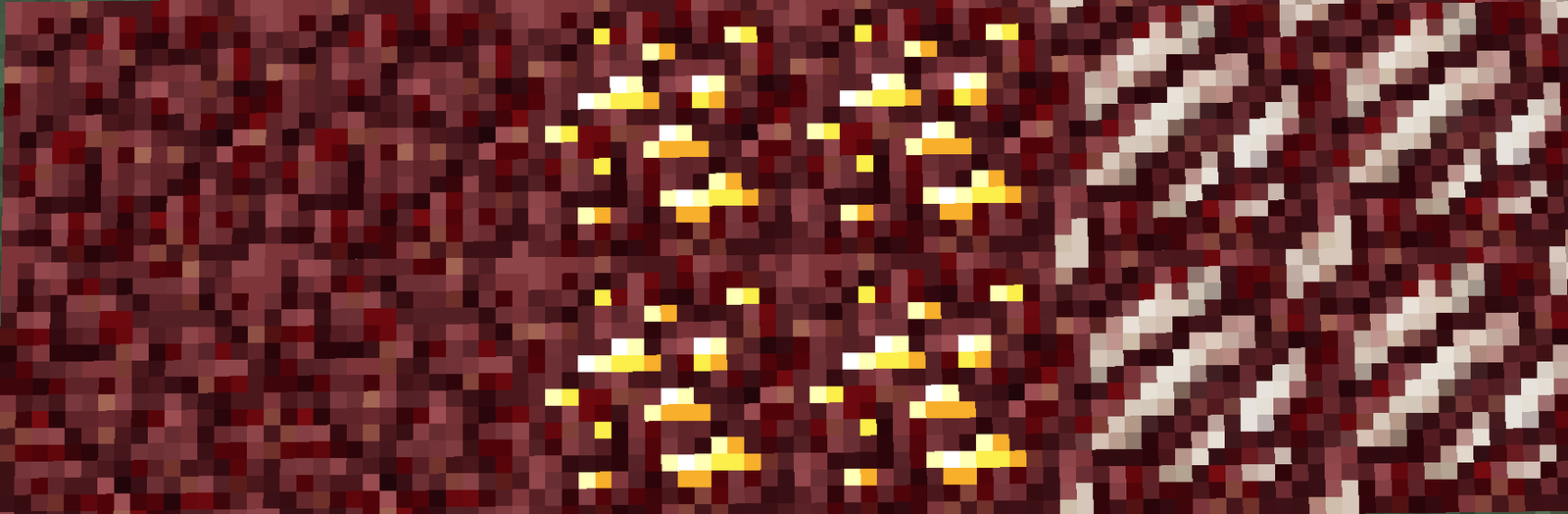
Better Old Netherrack adjusts the notoriously harsh vintage texture to a more comfortable, darker red shade that fits modern game lighting while keeping the retro charm.
Overview
In-depth
Better Old Netherrack reworks the classic, harsher Netherrack tones into a darker, warmer red that sits better under modern lighting. The pack keeps the original retro shape and pixel feel while softening contrast and noise, so caves and nether builds feel less abrasive without losing character. This is a subtle tweak rather than a total overhaul, aimed at players who prefer the vintage look but want a gentler palette.
The creator, AT-3109, focuses on restraint, leaving most blocks untouched while targeting Netherrack and a few adjacent textures for visual harmony. That approach makes Better Old Netherrack compatible with many other 16x resource packs and easy to layer in a pack mix. For more texture packs with similar intentions, check the main browse page at texturespack.com.
Installation is simple, given the 16x resolution and vanilla loader compatibility. The files are structured to work directly with the vanilla resource pack menu, so you can test the look quickly then combine it with complementary packs if desired. Because the changes are primarily color and contrast adjustments, performance impact is negligible on most systems.
The pack lists support across a broad range of versions, so many players will find it works without modification. Note that because Better Old Netherrack touches only a narrow set of assets, you can safely keep other major packs active while using it as a tweak layer. For more packs in the tweaks category, see the tweaks collection at texturespack.com/browse/texture-packs?category=tweaks.
Who should try this
Use Better Old Netherrack if you like the old nether aesthetic but prefer softer reds and lower contrast, or if you are building retro themed nether areas and want consistent coloring under modern lighting. It is particularly handy as a small, focused add-on for texture pack combinations where a single block currently looks out of place.
Gallery
Screenshots
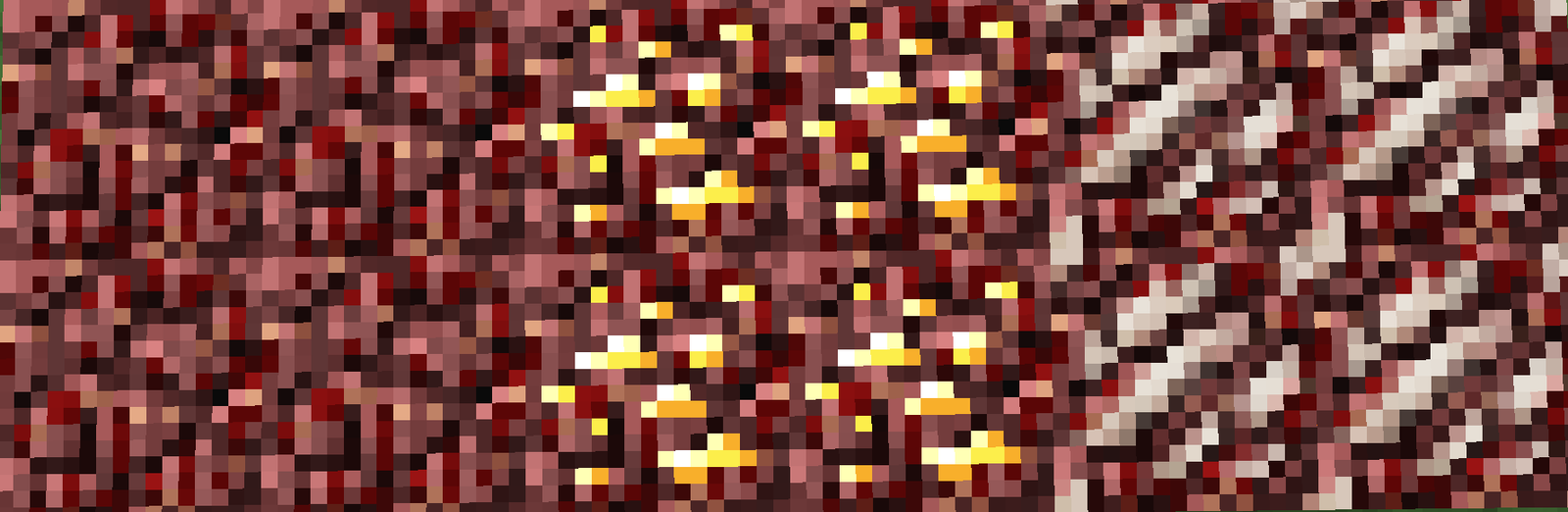
Better Old Netherrack in game, captured across biomes and lighting conditions.
What you get
Why Better Old Netherrack?
Softer Nether Color
Reduces harsh contrast on Netherrack, making caves and fortresses easier on the eyes while preserving the original design.
Low Performance Cost
At 16x resolution with minimal asset changes, this pack adds virtually no extra load on your system or frame rate.
Vanilla Friendly
Designed for the vanilla resource pack loader, so installation is quick and it plays nicely with standard game behavior.
Mixes Well
Because it targets only a few textures, you can layer it on top of larger packs to correct Netherrack color without conflicts.
Retro Preservation
Maintains the vintage pixel shapes and feel, so the pack keeps the old atmosphere while updating coloring.
Simple Focus
A narrow scope means fewer surprises, making it an easy choice for players who want one clean visual change.
Downloads
Get Better Old Netherrack
The 1 most recent Better Old Netherrack builds, direct mirror links, no ad redirects.
Install
How to install Better Old Netherrack
Vanilla route
- 1Download the Better Old Netherrack zip from the pack page on texturespack.com.
- 2Open Minecraft, go to Options, then Resource Packs, and click Open Pack Folder.
- 3Move the downloaded zip into the resourcepacks folder, do not extract it.
- 4Back in Minecraft, enable Better Old Netherrack in the Resource Packs menu and confirm changes.
- 5Restart the game if assets do not update immediately to ensure textures load correctly.
Modded route (Minecraft Vanilla)
- 1With Fabric or Forge installed, place the Better Old Netherrack zip in the resourcepacks folder.
- 2Load Minecraft with your modloader profile, Optifine is optional for extra texture settings.
- 3Enable the pack from Options, Resource Packs, and prioritize it above other layers as needed.
- 4If using shader mods, restart the game after enabling to ensure correct lighting interaction.
- 5Test in a world and adjust pack order to resolve any visual overlaps from other mods.
◎ Compatibility
✓ Tested and confirmed working on Minecraft 1.16
We ran Better Old Netherrack on Minecraft 1.16 even though the pack was not officially built for this version. Texture packs typically stay compatible across nearby Minecraft releases, and this one runs as expected.
Troubleshooting
Common problems
Netherrack still looks too bright.
Move Better Old Netherrack higher in the resource pack order or enable it alone to ensure its textures override others.
Textures not updating after install.
Restart Minecraft or press F3+T to reload resources, this forces the client to refresh pack assets.
Color clashes with another pack.
Adjust pack priority so Better Old Netherrack is above the conflicting pack or use it alongside only compatible 16x packs.
Missing textures on newer blocks.
Since the pack targets Netherrack, newer blocks remain unchanged; combine it with a full pack that provides those textures.
FAQ
Frequently asked questions
Which Minecraft versions does Better Old Netherrack support?+
The pack lists many supported versions around 1.16 through 1.21. Texture packs generally remain compatible with nearby Minecraft versions even when they were not officially built for that release.
Will this pack affect performance?+
No, changes are minor at 16x resolution so there is almost no performance impact in normal play.
Can I use this on Bedrock Edition?+
This pack is built for Java vanilla, so it will not import directly into Bedrock without conversion tools or manual editing.
Do I need Optifine to run Better Old Netherrack?+
Optifine is not required for this pack, though it can provide extra graphical options; the pack functions fine without it.
Is there any risk using this pack on a server?+
Clientside resource packs like this do not modify server files, so there is no server risk; servers may require their own resource pack for consistent visuals.
What if a texture still looks wrong after installing?+
Try reordering packs or disabling others to isolate the issue, and reload resources with F3+T or restart the game to apply changes.
Ready to install?