Texture pack review
3D Default
3D Default latest build for Minecraft 26.2
This light-weight resource pack adds 3D models to vanilla blocks and items while keeping the original Minecraft look and feel intact.
Overview
In-depth
3D Default is a light weight resource pack that adds three dimensional models to many vanilla blocks and items while keeping the familiar Minecraft look and feel. The changes are subtle, focused on depth and geometry rather than new textures, so players who prefer a classic palette will recognize every block and item. GeForceLegend designed this pack to preserve vanilla proportions while introducing beveled edges, raised details, and true 3D item models that sit naturally in the world and in your hand.
The pack works with a broad range of versions, and testers report it layers cleanly over standard gameplay. It does not overhaul textures, so performance tends to be closer to vanilla than high resolution packs, but extra models can add minor CPU or GPU cost on lower end systems. You can browse similar options on our vanilla-plus category page for comparisons and alternatives.
Installation is straightforward, and most players can run 3D Default with just the game's built in resource pack loader. For players using modded launchers, the pack is typically compatible when run alongside Fabric or Forge, though some model based mods may conflict. For a quick look at other packs, visit our main texture packs directory to compare features and styles.
What to expect
Expect small, consistent model upgrades, like raised trapdoors, thicker leaves, and dimensional tools that do not change color or style. Because the pack sticks close to vanilla artwork, builds retain their original aesthetic while gaining a bit more physical presence. This makes it a good choice for players who want a refined vanilla appearance without replacing textures wholesale. The license is GNU General Public License v3.0 only, and the source context notes the focus on lightweight model additions rather than texture replacement.
Gallery
Screenshots
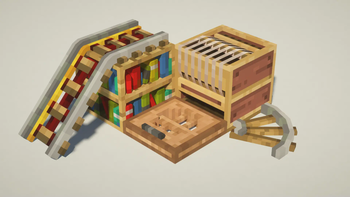
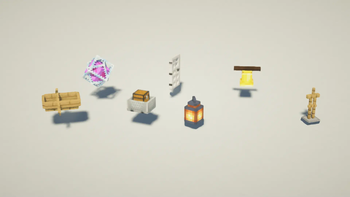
3D Default in game, captured across biomes and lighting conditions.
What you get
Why 3D Default?
True 3D Models
Adds genuine three dimensional geometry to items and blocks, improving depth while preserving vanilla textures and color.
Vanilla Friendly
Keeps the original Minecraft art style intact, so builds and resource packs that rely on vanilla textures remain compatible.
Light Performance Impact
Designed to be lighter than high resolution packs, it usually has only a modest hit on performance compared with full texture overhauls.
Wide Version Range
Known to run across many Minecraft releases, reducing the need to switch packs when you update the game client.
Subtle Visual Upgrade
Focuses on small model improvements that enhance realism without altering the familiar look or atmosphere of vanilla builds.
Simple Installation
Works through Minecrafts resource pack menu for most users, making it easy to enable and test quickly.
Downloads
Get 3D Default
The 10 most recent 3D Default builds, direct mirror links, no ad redirects.
Install
How to install 3D Default
Vanilla route
- 1Download the 3D Default zip from the pack page and keep it zipped.
- 2Open Minecraft, go to Options, then Resource Packs, and click Open Resource Pack Folder.
- 3Move the downloaded zip into the resourcepacks folder and return to Minecraft.
- 4Activate 3D Default from the Available Packs list and move it to Selected.
- 5Click Done to apply the pack and wait for assets to reload before entering a world.
Modded route (Minecraft Vanilla)
- 1Install Fabric or Forge for your Minecraft version, Optifine is optional but sometimes helpful.
- 2Place the 3D Default zip into the resourcepacks folder used by your launcher.
- 3Launch Minecraft with Fabric or Forge selected, then open Options and Resource Packs.
- 4Enable the pack from Available Packs and move it to Selected, then confirm and reload assets.
- 5Test alongside other mods and disable conflicting model mods if visual issues appear.
◎ Compatibility
✓ Tested and confirmed working on Minecraft 26.2 and 26.1.2
We ran 3D Default on Minecraft 26.2 and 26.1.2 even though the pack was not officially built for these versions. Texture packs typically stay compatible across nearby Minecraft releases, and this one runs as expected.
Troubleshooting
Common problems
Models not appearing
Confirm the pack is enabled in the resource packs menu and placed in the resourcepacks folder, then reload the world or restart the client.
Missing textures on custom items
Disable other resource packs to check for conflicts, then enable 3D Default alone to isolate the issue and reapply desired packs one at a time.
Lower framerate in busy scenes
Reduce in game render distance and lower graphics settings, or try enabling Optifine to access additional performance options.
Incompatible mod models
Remove or reorder the conflicting mod resource pack, or run 3D Default alongside only Fabric or Forge without overlapping model mods.
FAQ
Frequently asked questions
What Minecraft versions does 3D Default support?+
The pack lists many supported versions across recent releases. Texture packs generally remain compatible with nearby Minecraft versions even when they were not officially built for that release.
Will this pack hurt performance a lot?+
It has a lighter impact than high resolution packs, but extra 3D geometry can reduce frame rates on low end systems; lowering render distance or enabling Optifine often helps.
Can I use this on Bedrock Edition?+
3D Default is designed for Java Edition resource pack loading, and it will not install natively on Bedrock without conversion tools or third party steps.
Do I need Optifine to run the pack?+
Optifine is not required to use 3D Default, though Optifine can offer performance tuning and additional graphical options that may improve results.
Is it safe to run on a multiplayer server?+
Yes, using the resource pack client side is safe for servers; server operators can require or recommend packs but running this pack itself poses no inherent risk.
How do I fix missing models after an update?+
Reload resource packs from the options menu and restart the game; if issues persist, redownload the pack and check for conflicts with other model based packs.
Ready to install?